INS Manager - Desktop
INS Manager - Desktop is a java based desktop application for logging, testing, displaying and configuration of INS units.
It should run on most Windows, MacOS and Linux computers.
It contains almost identical functionality to the web interface, INS Manager - Web. This section will only include the areas that are different or absent from the web UI.
Installing INS Manager - Desktop
System Requirements
-
INS Manager Desktop is only available for systems with x64 and ARM architectures.
-
INS Manager Desktop includes a 3D mapping display which requires an internet connection. If your machine does not meet the graphics requirements the mapping view will only show space without a globe.
Note: Note, when the INS is running at very high output rates e.g. 1000 Hz, INS Manager can consume significant system resources handling such large quantity of data.
Steps
-
Install Java 11 from Adoptium on your computer, selecting the correct operating system and architecture for your computer.
Note: Java 11 is required to run INS Manager. INS Manager doesn't work with some of the later versions, such as Java 26.
Note: Adoptium JRE 11 is the recommended Java installer to be used on all platforms.
-
Download the latest version of INS Manager from the Advanced Navigation website.
-
No installation process is required for the INS Manager application on a Windows system — it can be run from any directory by simply double clicking on it. To open the program on some systems it may be necessary to right click and select open with → Java Runtime Environment.
-
On MacOS systems it may be necessary to run the application from a terminal window:
java –jar -XstartOnFirstThread INSManager.jar -
On Linux systems it may be necessary to run the application from a terminal window:
java –jar INSManager.jar
The INS's Evaluation Kit includes an FTDI USB to serial adaptor cable. (With either a RS232 / RS422 or circular push-pull plug.) The drivers are normally installed automatically, but if not they are available for download from www.ftdichip.com/Drivers/VCP.htm.
Troubleshooting
If the application will not start, the most common reason is that you have 32-bit Java installed on a 64-bit operating system. Uninstall Java and reinstall the 64-bit version.
If the globe does not appear in the 3D map area, this indicates that either your graphics card is not powerful enough, your graphics card driver is out of date, or you have no internet connection.
-
Ensure the RS232 / RS422 switch is in the correct mode.
Product Factory default mode Boreas
Certus Evo
Certus
Certus Mini
Motus
Spatial
Spatial DualRS232 Spatial FOG Dual
Spatial FOG
GNSS CompassRS432 - Ensure you select the correct COM port. This can be easily identified by unplugging and re-plugging in the USB connector.
- Ensure you have the correct baud rate selected in the INS Manager. The factory default value for the baud rate is 115200 bps.
Windows Trouble Shooting
There is a well known problem with USB serial devices under Windows known as “crazy mouse”. The problem occurs when the system mistakenly installs the USB serial device as a mouse. If you experience this problem, often a restart will resolve it. Otherwise there is a tool that can fix this issue available at
http://www.stentec.com/anonftp/pub/wingps/pnpblockersetup.exe.
If the serial port does not show up when you plug in the FTDI USB to RS232/RS422 adaptor cable, you may need to install the drivers from www.ftdichip.com/Drivers/VCP.htm.
When operating the INS on Windows at a high data rate, data can be lost due to the latency of the FTDI driver. To resolve this problem the latency of the driver should be reduced to 1 ms:
- Start the Windows Device Manager (1) and find the Ports section (2).
- Identify the specific COM port being used (3) by dis-connecting and re-connecting the USB to RS232 / RS422 adaptor cable.
- Right click on the identified COM port and select Properties. Select the Port Settings tab (4) and select Advanced (5).
- Change the Latency Timer value (6) to 1 msec then press OK (7), and OK again for the previous window.
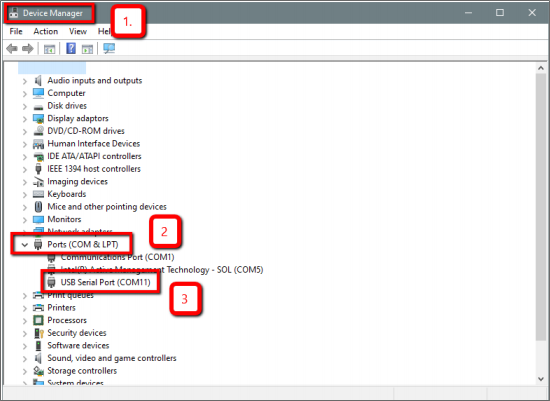
Setting the Windows Port Latency Value - 1
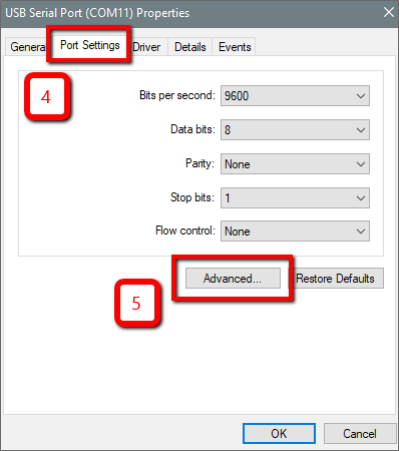
Setting the Windows Port Latency Value - 2
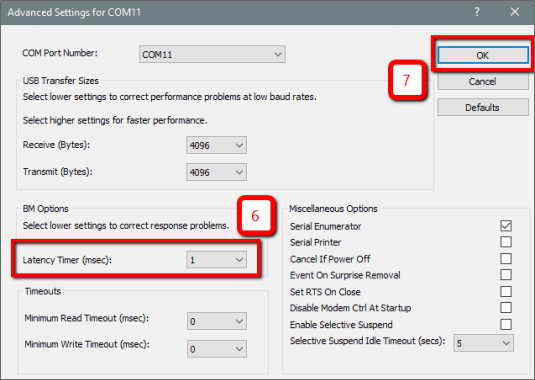
Setting the Windows Port Latency Value - 3
Linux Troubleshooting
If serial ports do not show up, the typical reason is a lack of permissions. The user should add themselves to the dialout group with the command:
sudo adduser username dialout
Compiz causes issues with the 3D mapping. If you are experiencing problems it is recommended to turn off Compiz.
Modemmanager can also sometimes cause problems on Linux installations. If you are not using a modem, it is recommended to remove modemmanager with the command:
sudo apt-get remove modemmanager