Tools Menu
The Tools menu contains tools for performing functions with the INS and INS data.
Device Discovery
[INS Manager Desktop only]
Tools > Device Discovery allows network discovery and reconfiguration of devices on the local network regardless of network settings.
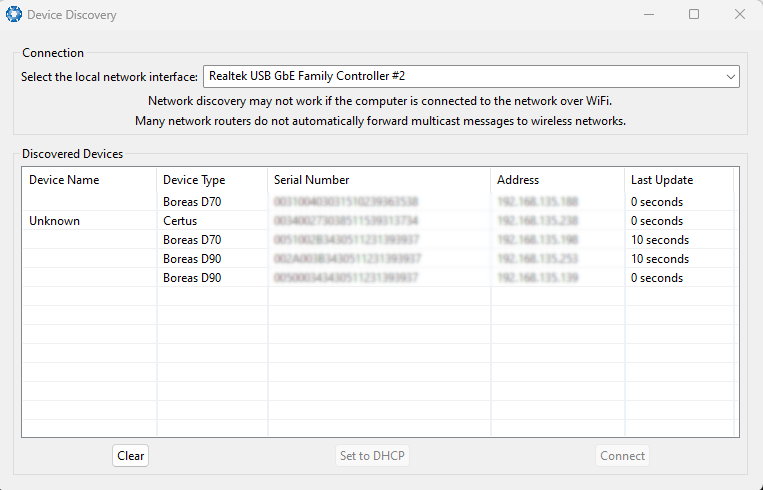
INS Manager Desktop Device Discovery Dialogue
Set to DHCP
Once devices are discovered, any devices on uncontactable network addresses can be reset to DHCP by pressing the “Set to DHCP” button for that device.
Firmware Update
Tools > Firmware Update is used to update the INS device firmware.
Advanced Navigation regularly provides firmware updates to improve performance and add features. These are described on the INS product page of the Advanced Navigation website. Advanced Navigation recommends that you upgrade to the latest version whenever available. The firmware update function is robust, such that power loss, file corruption or other issues cannot brick the device.
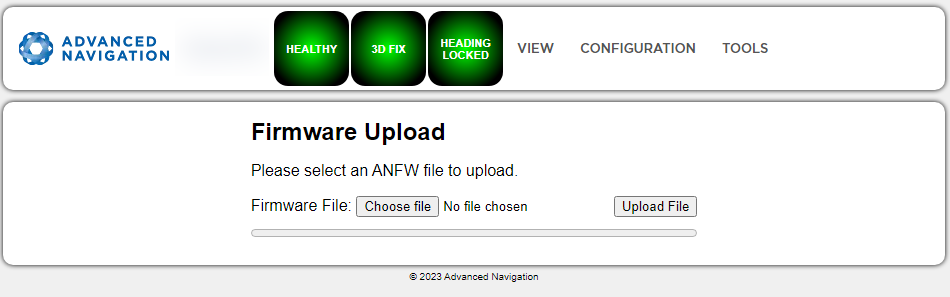
INS Manager Web Firmware Update Page
Click "Choose File" and select the appropriate ANFW file for upload.
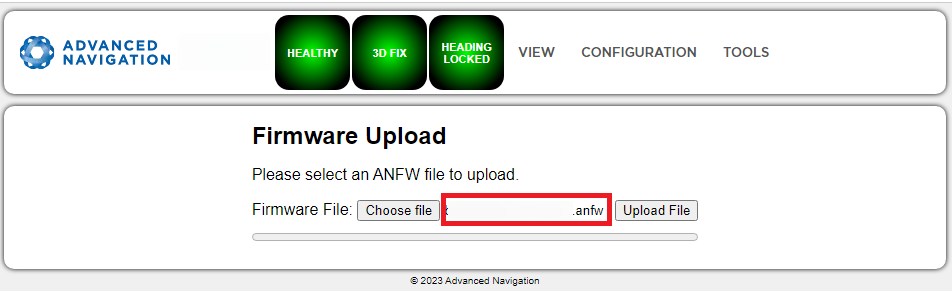
INS Manager Web Firmware Update Choose File
Wait while the system uploads the firmware.
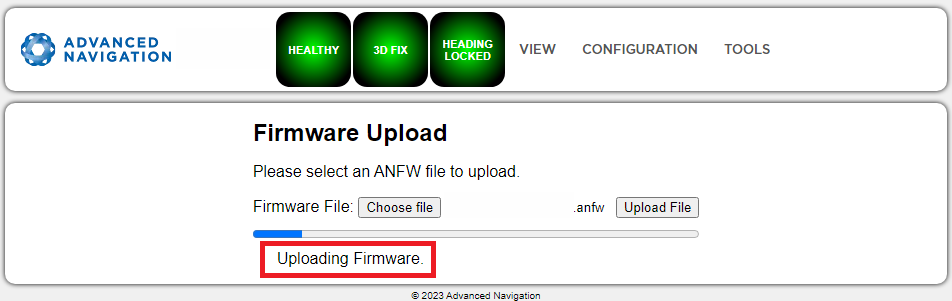
INS Manager Web Firmware Update Uploading Firmware
Once uploaded, the system will automatically verify the firmware prior to reboot.
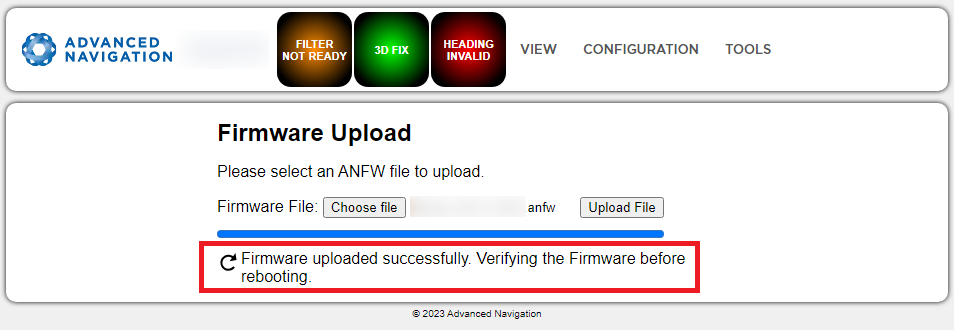
INS Manager Web Firmware Update Verifying
Upon successful verification, a dialog box will appear indicating the device is rebooting to apply the update.
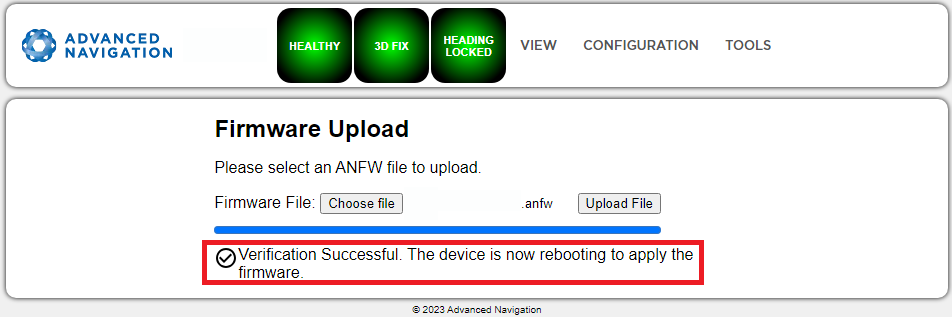
INS Manager Web Firmware Update Complete
Magnetic Calibration
Tools > Magnetic Calibration allows you to perform magnetic calibration, view and modify the magnetic calibration values. The actual magnetic calibration is performed inside the INS unit.
This page is available for INS units which include a magnetic sensor. This includes the Certus series, and excludes the Boreas FOG series.
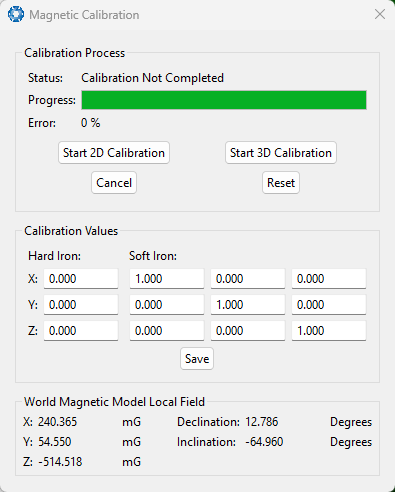
INS Manager Desktop Magnetic Calibration Dialogue
Logs
[INS Manager Web only]
Applicable to: Certus and Boreas products. Doesn't include Certus Mini.
Tools > Logs
Our higher-end INS products include an on-board high capacity data logging system. Logging is enabled by default, but by default no specific data is configured to be logged. To enable logging of specific data packets or messages, see the page section: Configuration > Data Ports > Logging.
The log file name includes the date and time the log file recording commenced, using UTC time, in the format [Product Name]Log_yy-mm-dd_hh-mm-ss.xxx. The log file extension identifies the file type.
If the time and date in the log file name is incorrect, this usually indicates the does not have a GNSS fix and has therefore not yet determined the correct time.
The logging configuration and recorded log files can only be accessed from INS Manager Web (via the ethernet interface). You cannot use the serial port interfaces.
Note: If there is a requirement not to store potentially sensitive information, it is possible to order the INS without internal storage. If this is the case, no internal logging will be possible.
Enabling and Disabling Logging
To enable or disable the logging functionality, select or deselect the Enable Logging check box and click Save Changes. The log file currently being recorded is highlighted in green. If recording an ANPP-format log file, the log file will include the current INS device configuration.
Limiting the Maximum Log File Size
If you wish to limit the maximum file size for individual log files, select the Enable Splitting check box, enter a Max Log Size (in MiB), and then click the Save Changes button. This will not affect pre-existing log files but will affect the currently recording log file. Note this will round down to an integer if you enter a number with decimal places.
Downloading Log Files
You can download individual log files by simply clicking on them. Note, only one log file can be downloaded at a time using this method. To download multiple log files, first select the files required, and then click the Download Selected button. This will download all the files to your computer and compress them into one ZIP file. Note, it may appear that nothing is happening during this process, and it can take some time to complete. You can select all log files using the Select All button, or individually select log files using the check box on the left of the log file name.
Deleting Log Files
You can delete log files by selecting the specific log file(s) using the check box to the left of the log file name, or using the Select All button, and then click the Delete Selected button. For bulk erasing ALL log files you can use the Format button. This will erase all log files irrecoverably. Note, it can take some time.
Starting New Log Files
The Start New Log button will stop writing the current log file and commence writing a new file. This new file will also include the current INS device configuration. If logging is currently not enabled, this button will not do anything.
The ANPP log files are binary data and are therefore not in a human-readable format. To convert the ANPP log files you can use the Log Converter function of INS Manager Desktop > Tools > Log Converter. This will create CSV and KML files for your analysis. All the ANPP packets are described in detail in Advanced Navigation Packet Protocol. NMEA0183 log files are ASCII text and can be opened in any text editor.
Log Converter
[INS Manager Desktop only]
Tools > Log Converter allows the user to convert INS log files into various standard formats, including:
- CSV: Comma Separated Value
- GPX: GPS Exchange Format
- KML: Keyhole Markup Language
- IMR: Inertial Measurement and Reference
- RINEX files
The Position Offset settings are used to project the exported position of origin to a point other than the actual centre of the INS unit. For most users, these values should be left at zero.
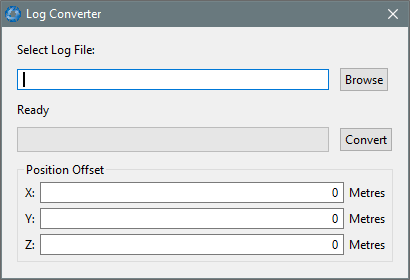
INS Manager Desktop Log Converter Dialogue
NTRIP Client
[INS Manager Desktop only]
Tools > NTRIP Client
This page can be used to connect to a network DGPS or RTK service to stream correction data to the INS for DGPS or RTK. The NTRIP client requires an internet connection to function.
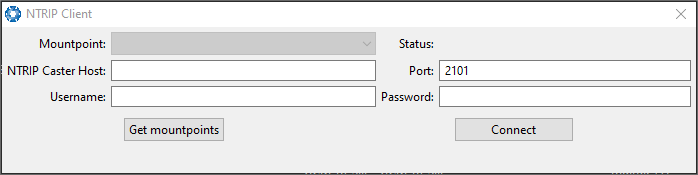
INS Manager Desktop NTRIP Client Dialogue