Tools Menu
The Tools menu contains tools for performing certain procedures with the INS.
Firmware Update
This page is used to update the INS device firmware,
Advanced Navigation regularly provides firmware updates to improve performance and add features. These are described on the Advanced Navigation website. Advanced Navigation recommends that you upgrade to the latest version whenever available.
The firmware update function is robust, such that power loss, file corruption or other issues cannot brick the device.
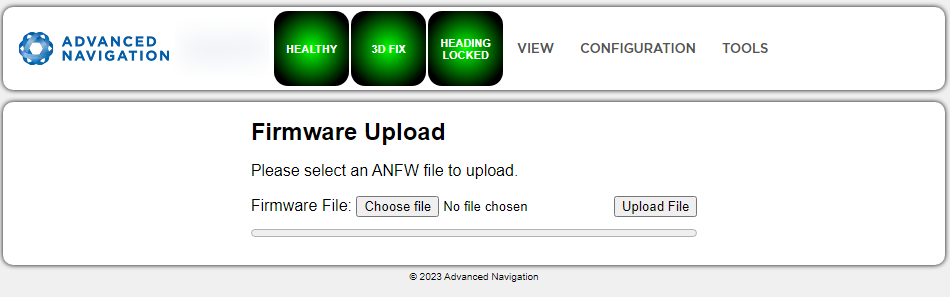
Web UI Firmware Update Page
Click "Choose File" and select the appropriate ANFW file for upload.
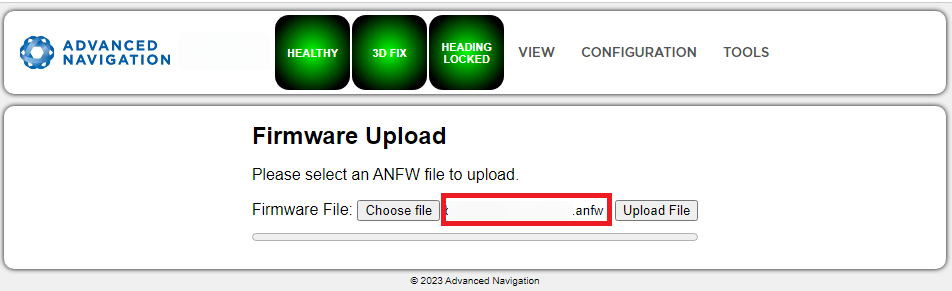
Firmware Update Choose File
Wait while the system uploads the firmware.
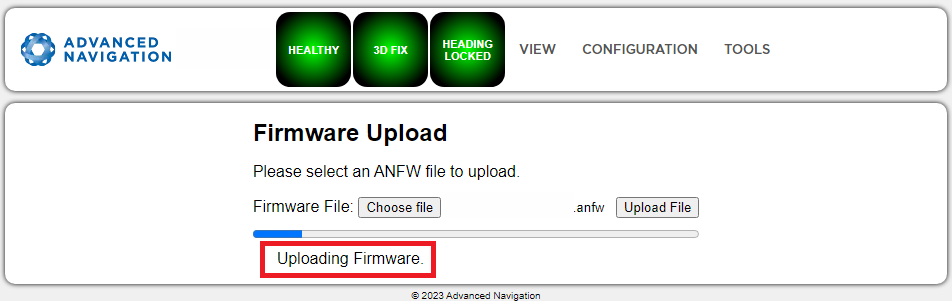
Firmware Update Uploading Firmware
Once uploaded, the system will automatically verify the firmware prior to reboot.
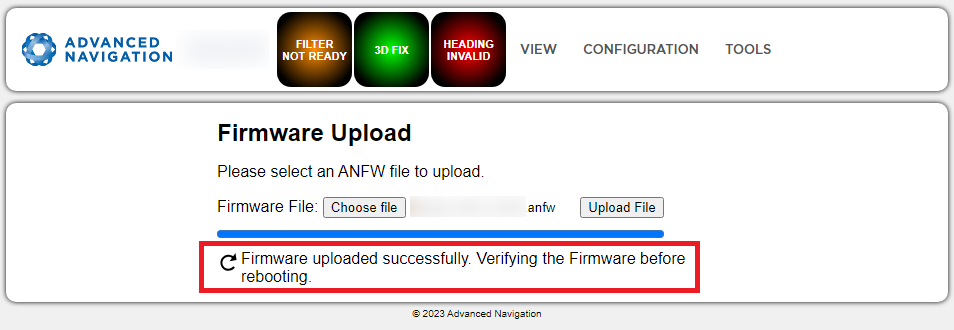
Firmware Update Verifying
Upon successful verification, a dialog box will appear indicating the device is rebooting to apply the update.
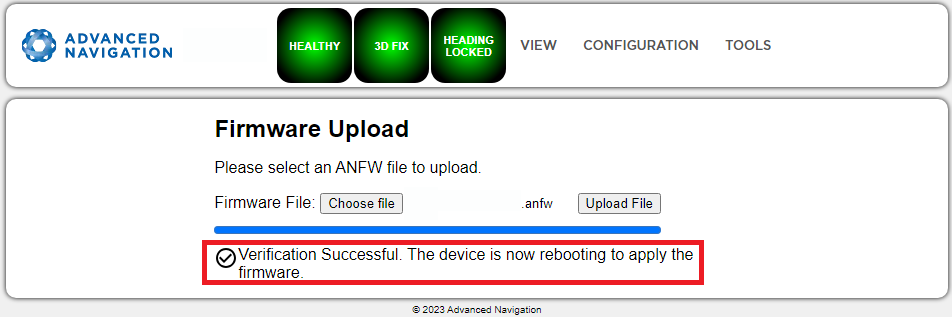
Firmware Update Complete
Factory Restore
The following procedure describes how to perform a factory restore of a INS unit via the web interface.
Note: A factory restore will reset all configuration settings back to their factory defaults and cannot be undone. Firmware, state data logs and network settings will not be affected.
- Connect to the INS via Ethernet and establish a connection using the web UI.
- Navigate to Tools → Factory Restore. From the Select Configuration drop-down menu, select the appropriate configuration for the:
- Evaluation Kit Surface for vertical connector, or
- Evaluation Kit Subsea for a horizontal connector.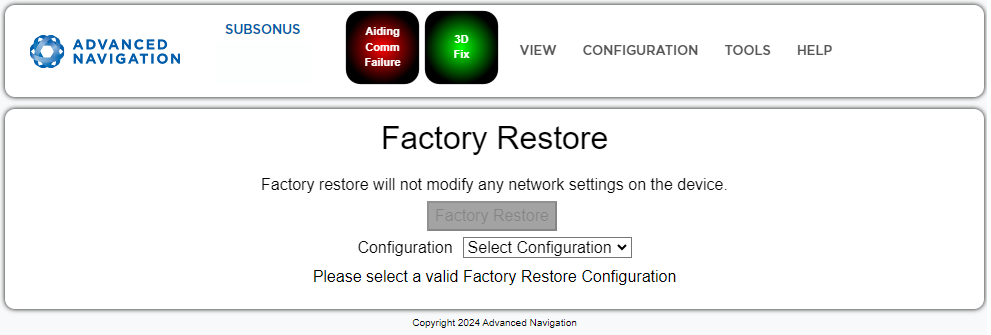
- Press Factory Restore.
- Wait until the factory restore is complete. The INS will reboot and beep on startup once finished.
- Navigate to the Configuration → Ethernet page.
- Ensure that Ethernet Mode is set to DHCP Client.
- Ensure that Link Mode is set to Auto Negotiation.
Inertial Alignment Tool
The Inertial Alignment tool is to detect gross orientation misalignment between Subsonus and an Advanced Navigation aiding source. The tool uses the networked aiding source (such as GNSS Compass or Certus) to track motion of the vessel and determine the relative alignment.
The Inertial Alignment Tool can be found under Tools → Inertial Alignment.
Note: Third party aiding sources are not compatible with this tool.
The Inertial Alignment tool determines the reference frame misalignment between Subsonus and the aiding source by comparing each devices internal inertial measurements. For the tool to function correctly and converge upon accurate offset values, the following is required:
-
Both units to be rigidly coupled to one another. E.g. rigidly mounted to either end of a single pole.
-
Minimal (if not the complete absence of) wobble from extended poles or non-rigid mounting orientations.
-
The vessel to which the devices are mounted to be moving (e.g driving the vessel around in a figure eight motion).
Ensure that the aiding device is mounted as described in Surface Unit Reference Source. If this cannot be achieved, then the correct offsets must be entered.
See Device Configuration for more information on entering alignment offsets manually for aiding devices.
Using the Tool
-
Navigate to Tools → Inertial Alignment.
-
Select the Aiding Source option from the dropdown. The alignment values for the Roll, Pitch and Heading will start to appear.
-
The values update constantly in real time. Once the values appear to be in the acceptable range, click Apply to Subsonus.
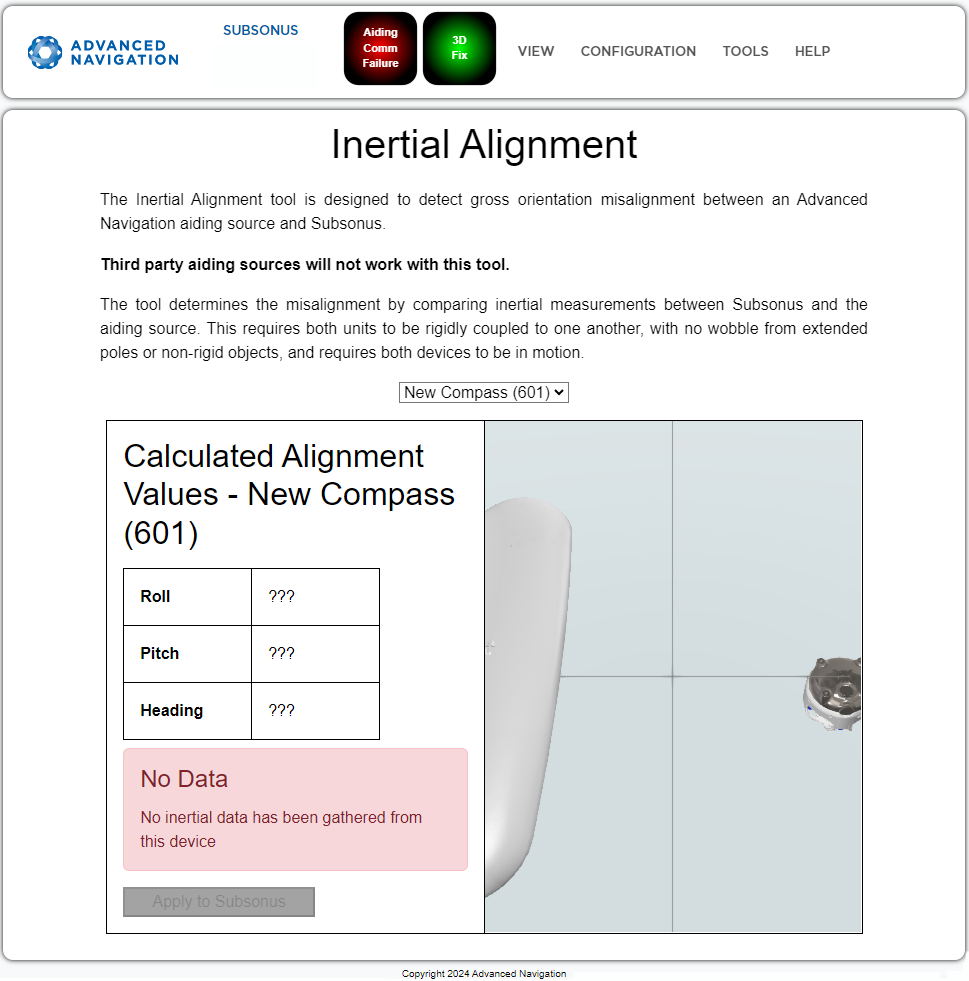
Inertial Alignment Tool