Main View
The Main View is accessible via View > Map.
It provides an immediate overview of the system's status, attitude, GNSS connectivity, and current position on the map.
The desktop version additionally includes controls for serial connection, while the web version includes the current time and position readout .
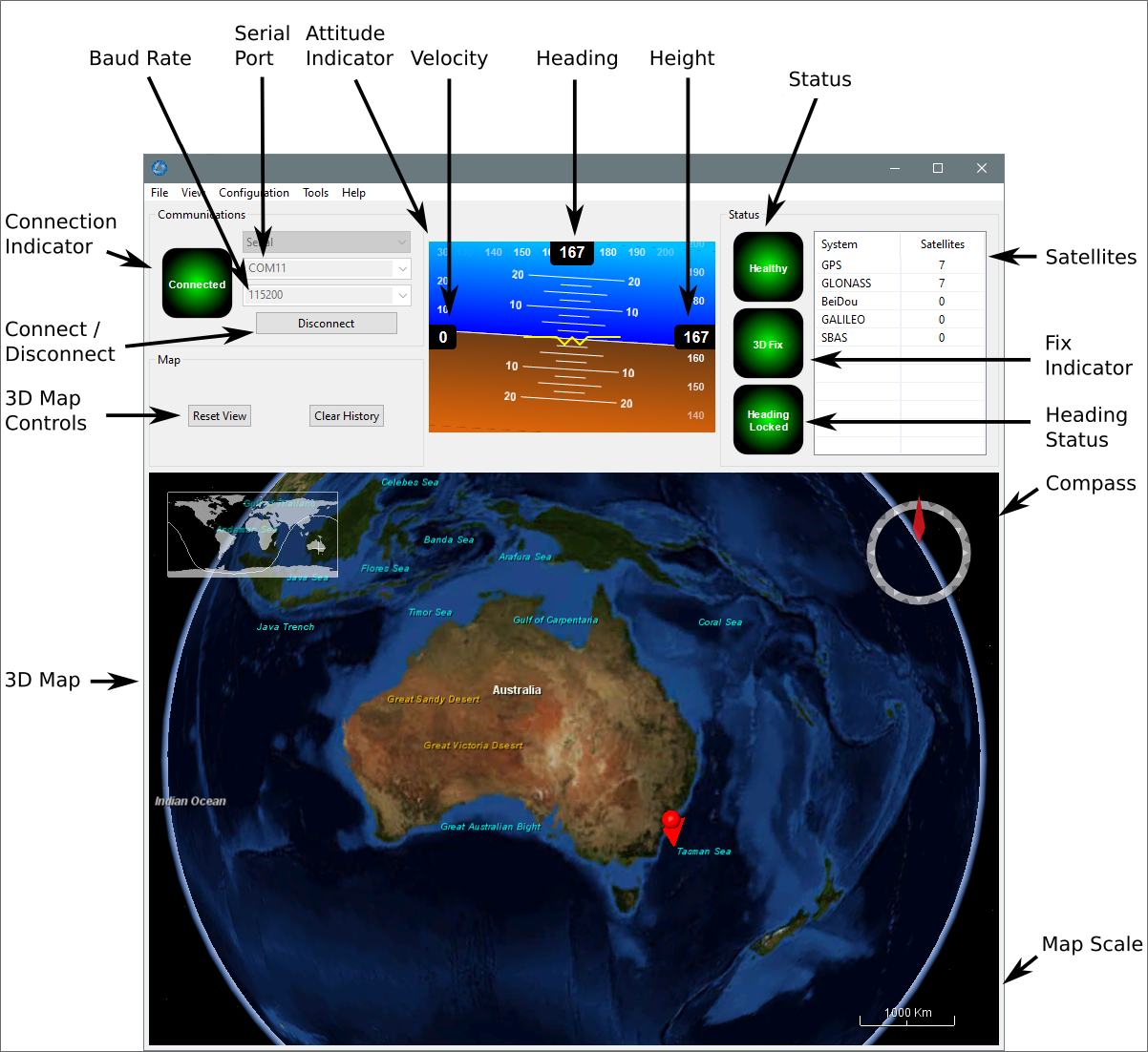
INS Manager Desktop Main View
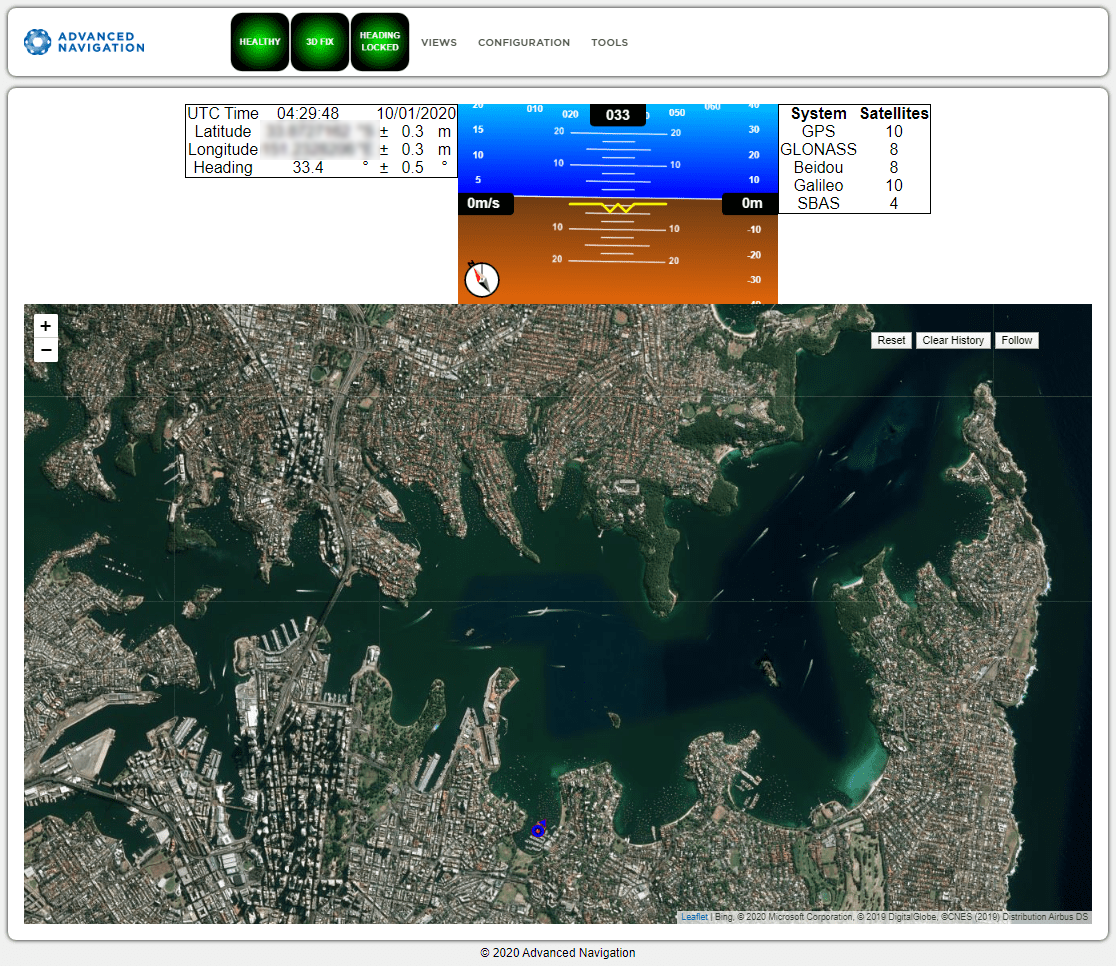
INS Manager Web Main View
Communications Section
[INS Manager Desktop only]
Within the Communications Pane, you can select to connect to a device using a Serial or Network connection.
For serial communications:
-
Select
Serial - Select
COM Port - Select
Baud Rate(default is 115200)
For network communications. In most cases, you can find your device from Tools > Device Discovery
-
Select
Tools > Device Discovery - Select your device from the list.
- Select
Connect(default is 115200) - Close the
Device DiscoveryPopup
Alternatively you can select parameters directly
-
Select
Network - Select
IP Address - Select
Port(Default 16718. Can use up to 4 ports.)
Select Connect / Disconnect to connect the Desktop application to the INS unit.
Current Time, Position and Heading
[INS Manager Web only]
This section displays the current UTC time, position, and heading. The data will only be valid if the INS has a HEALTHY status, there is a 3D GNSS fix or better, and the Heading is initialised.
Attitude Indicator
The Attitude Indicator visualises roll and pitch using a standard artificial horizon, similar to a traditional aircraft instrument. Heading, velocity, and height are displayed adjacent to the horizon. All displayed units are in SI (metric) and degrees.
Satellites Table
The Satellites page provides the satellites visible to the primary antenna. More detailed information is available in View > Satellites.
Note: The satellites table will only display satellite data if your device has an internal GNSS receiver, or is interfaced to an external GNSS receiver.
Status Indicator
The Status Indicator section provides immediate visual feedback on the operational state of the INS unit. These indicators are visible on every page of the interface.
-
Status Indicator: This indicator reports any critical problems. Before initialisation, the status may show “Filter not initialised” or similar. Once the filter has initialised, it will show HEALTHY.
-
GNSS Fix / Fix Indicator: This indicates the quality of the GNSS position fix. Under normal conditions, this will show 3D FIX or SBAS FIX. Visibility issues may result in 2D FIX or NO FIX.
-
Heading Status: This indicator shows the current status of the heading filter. When a valid source of heading is active, it will show HEADING LOCKED.
-
Satellites Table: This table shows the number of active satellites contributing to the current GNSS solution.
Map
[Option in INS Manager Web. Available from main page in INS Manager Desktop.]
The map provides a visual representation of the unit's current position on Earth and displays a red trail showing the position history since the last reset. Upon filter initialisation, the map automatically centers the view on the unit's current position. Basic map controls include:
-
Movement: Click and drag on the map to move the camera view.
-
Zoom: Use the mouse scroll wheel to zoom in and out.
-
3D Camera View: [INS Manager Desktop only] To manipulate the camera angle in 3D, use right click and drag or shift click and drag.
Map Controls
The map controls are functionally identical across both the Web and Desktop interfaces:
Reset
This resets the map view to center on the unit's current position.
Clear History
This clears the current red position history trail, immediately restarting the trail from the current location. This action does not impact active data logging.
Follow
This button automatically keeps the map view centered and tracking the device's current position.